Help
Need a hand?
The answers to the questions we get the most. If nothing matches, write to us: a person answers.
First steps
On first opening, a guided tour shows the spaces, the lists, a task, the chat and the AI. To see it again, open the ? menu at the bottom of the sidebar, then Replay the tour.
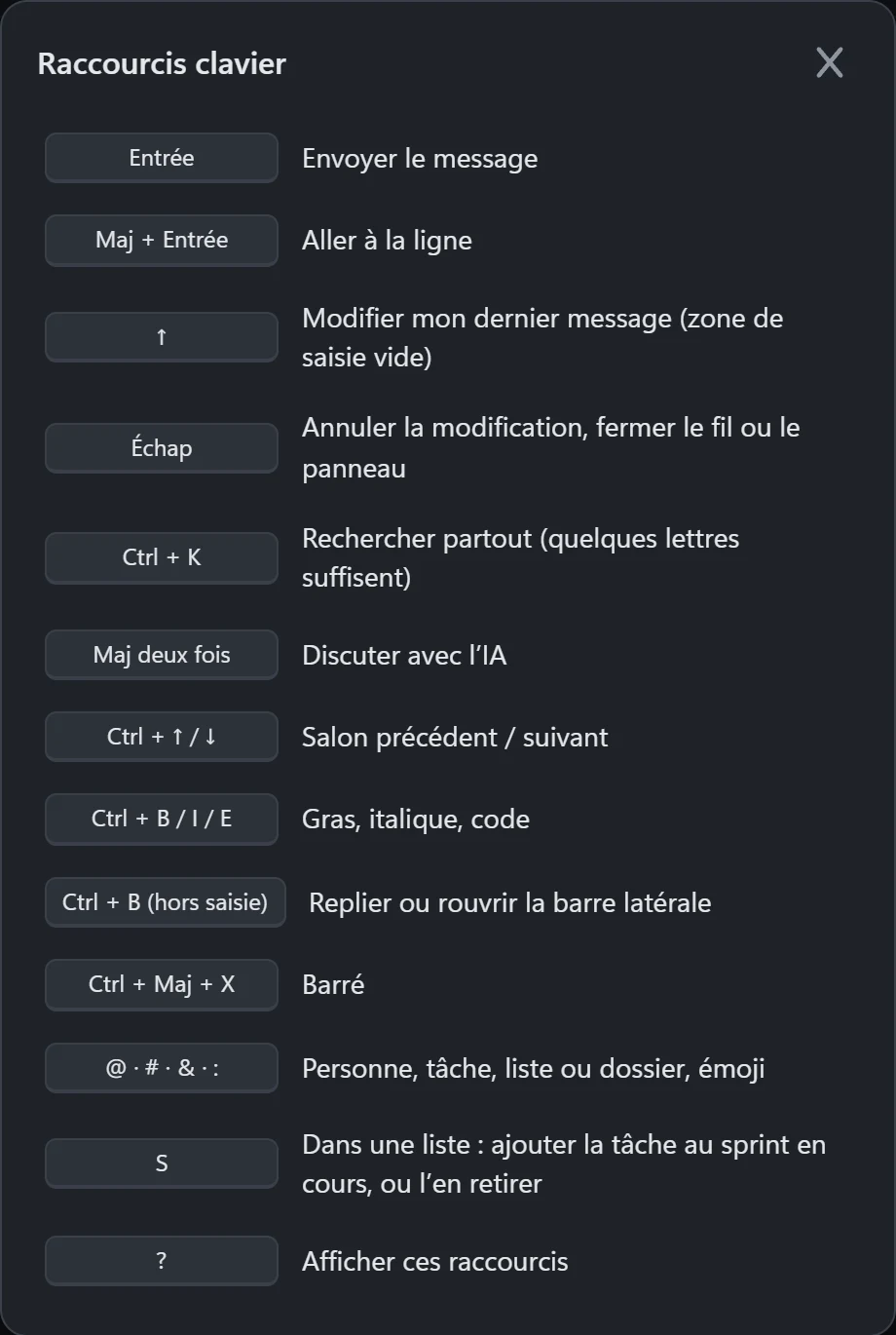
Shortcuts save time: Ctrl + K searches everywhere, Shift twice opens the AI, # inserts a task into a text. The ? key shows the full list.
Connecting Claude Code, Cursor or another AI
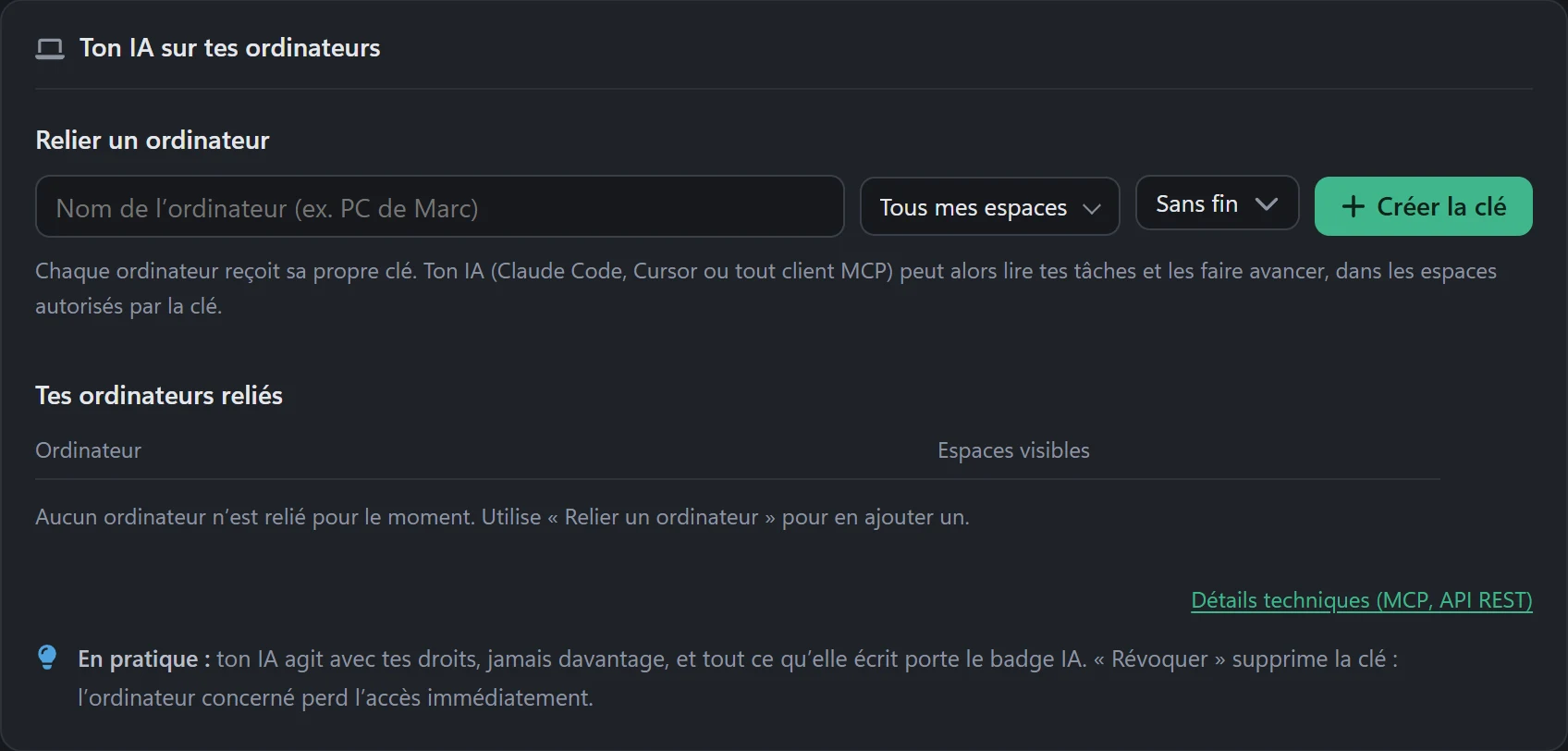
Your AI on your own computer can read your tasks and move them forward, with your rights and never more. It enters TaskForce with a personal key (the MCP protocol).
- Open Settings, then Me, then AI and tools.
- Name the computer, choose the spaces it may see, then Create the key.
- Copy the command shown and run it on your computer. The key is shown only once.
Everything your AI writes carries the AI badge. Revoke deletes the key, and the computer loses access at once.
Claude Code says the token is refused
The key is refused if it was copied wrong, deleted, or cut by Sign out everywhere. The simplest fix is to create a new one.
- In TaskForce, open Settings, then Me, then AI and tools.
- Create a key and copy the command shown.
- On your computer, remove the old one with
claude mcp remove taskforce, then run the copied command. - Check with
claude mcp list: thetaskforceline should say “Connected”.
A key limited to some spaces sees nothing else, on purpose. Each person uses their own key, on each computer.
Where are my backups?
Your TaskForce is backed up every day, with an encrypted copy off the server. You have nothing to do. Admins see the date of the last one in Settings, TaskForce tab.
Need to go back to an earlier day? Write to us with the day you want.
Self-hosted? The backups are in your volume, and you restore them yourself: see self-hosting.
Address, HTTPS and your own domain
Your TaskForce has its address at https://your-team.eggstudio.app. HTTPS is already set up.
Want your own address, for example tasks.your-domain.com? Write to us. You will create two records at your domain provider: a CNAME to your current address, and a TXT proof record we give you. The HTTPS certificate is then made on its own, in about a minute.
Updates
We update your TaskForce for you. Your data is kept, and the database is copied just before each update. If a break is needed, it is announced in advance.
The running version is written in the app’s ? menu, at the bottom of the sidebar. Give it when you report a problem.
Self-hosted? You pick the moment of the update, and the database is copied before it the same way: see self-hosting.
Send feedback from the app
A bug, an idea, a question: open the ? menu at the bottom of the sidebar, then Send feedback. Describe what happens, and add a screenshot if you can.
To follow what you sent, open My feedback in the same window. You see where each one stands, and our reply when there is one.
Write to us
By e-mail, at [email protected]. Give your TaskForce’s address and, if you can, its version.
- Duo and Team: the docs and feedback from the app. We read every message, with no guaranteed reply time.
- Pro and Enterprise: a person answers you. First reply within 1 business day, blocking incident within 4 business hours.
- 9 am to 6 pm (Paris time), on business days.